

Overview
This Android app helps you record prices of products at local stores and compare them. It works entirely offline:
- You enter a list of stores.
- You enter a list of products sold at those stores.
- You enter, update and confirm the prices of those products at those stores as you shop.
- The app shows you the unit price of a product at all the stores which sell it, allowing you to decide where to buy it.
There’s nothing particularly fancy or clever here. It’s a very simple, specialised database with a user interface optimised for easy use when you’re standing in a supermarket aisle with a basket or trolley.
The app tracks how old each price is, so you won’t be misled by out-of-date prices. Old prices are indicated by icons and a simplistic inflation adjustment is applied to try to keep them somewhat useful, although for best results you should update the prices yourself. You can view a price’s history if you want to see how it has changed over time.
The app will make a recommendation as to whether a price is good, OK or bad if it has enough information. A list of unit prices is also shown so you can decide for yourself.
Customer loyalty scheme discounts can be specified for each store and these will be used to adjust the unit price when making a comparison between stores.
Unit conversions are handled automatically, both within and between measurement systems. Metric, imperial and US customary units are all supported.
Getting started
When you first install the app, it will be populated with some demonstration data. This isn’t realistic, but it lets you explore the app as it’s meant to be used without having to enter a load of data first. Feel free to just play around; it’s not as if this data is valuable.
Basic concepts
There’s obviously nothing inherently tricky in the concept of comparing unit prices for a product across stores. In theory we just take the current price/pack size of the product at each store, calculate the unit price and pick the lowest. The problem is that because the prices in the app come from you entering them when you visit the store, we don’t know the actual current price and have to make do with the possibly outdated price from the last time you updated it. We effectively need to predict the present from the limited data we have about the past.
It would not be practical or sensible to attempt to predict in any kind of detail. We have a handful of data points, prices move in response to all sorts of external events we have no way to model and which can’t be captured usefully by any external statistics you could reasonably be expected to type in. Offers and promotions at individual stores likely overwhelm any larger market trends in practice over the short timeframes involved.
The approach taken by the app is to track how recent a price is and make that information visible to you. Every price for every product at every store has a “confirmed at” date: the last date the price was known to be correct. If you just entered a price for the first time or updated the price after noticing it changed, the confirmed at date is today. You are encouraged to also “confirm” a price (which sets the confirmed at date to today) if you notice that the price is unchanged on a subsequent visit to the store.
The app shows the confirmed at date as a relative time (“today”, “3 days ago”) when showing a price. It also categorises prices as:
- fresh (confirmed <=30 days ago)
- stale (confirmed >30 days ago and <=180 days ago)
- ancient (confirmed >180 days ago)
and shows these categories instead of the precise age in some places. (30 and 180 days are the somewhat arbitrary defaults and can be adjusted to suit your personal tastes and local price stability.)
If you’re in store A and foozles cost $3/kg with absolute certainty - you can see it on the shelf in front of you - you should update/confirm the price in the app to reflect that. The app might show that foozles are $2/kg in store B but that price is a month old. Only you can decide if that price is likely to still be valid and whether it’s worth going to store B for your foozles on the offchance they are still cheaper than store A. If you do go, you should update/confirm the price once you get there, whatever it is. But you may have had an otherwise wasted trip in terms of obtaining foozles if they are now $4/kg at store B.
The likely long term pattern of using the app is that you imperfectly update and confirm prices across multiple visits to stores over time. You won’t update or confirm every price for every product every time you visit a store, but you’ll happen to notice things and make relatively casual updates. You’ll have a fuzzy but valuable collection of recent-ish prices, and when you want to buy something, you’ll be able to buy it at a relatively good price even if you could have got it somewhere else cheaper. (“Foozles are $2.31/kg here. I can see from the app they were $2.27/kg at that other store last month, but that’s close enough, I’m going to just buy them here. Next time I’m in that other store I’ll check the price so I know for future purchases.”)
The app applies a very weak concept of “inflation” to stale and ancient prices. We are not trying to predict the future from the present or analyse historical patterns; we are attempting very crudely to predict the present from the limited outdated information we have. The actual price exists out there in the world with 100% certainty; we just don’t know what it is, unless you are willing to go visit the store and check. Inflation in the app should be viewed more as an “uncertainty penalty” applied to old prices. Imagine an escaped prisoner - their location was known absolutely at the last head count, but as time passes the radius of the area they could be in grows according to their estimated speed.
The inflation rate defaults to 5% and can be changed in settings; it is not something the app derives from an analysis of price changes.
Inflation in the app has only the loosest connection to headline inflation figures. It should probably be set on the high side - perhaps double the most pessimistic inflation figure reported would be a reasonable starting point? It should perhaps be called “staleness penalty” but using the word inflation makes the way it works more obvious, even as it invites misleading comparisons with headline inflation figures.
The stale price threshold (30 days by default) is effectively the definition of how long you regard a price as “reasonably likely to remain about the same” after you last saw it. The ancient price threshold (180 days) is effectively the point beyond which you regard a price as too old to be a useful indicator of the current price. If you see an ancient price, you might want to delete it from the app, or make a special effort to visit the store to update/confirm it. (The presence of an ancient price does at least indicate to you that the store sold that product in the past and may still sell it.)
The app will sometimes offer basic automated judgements on whether prices are good/OK/bad. These are inevitably crude and you should use your own judgement to supplement them. Ancient prices are completely ignored when making these judgements.
Collections
You can have as many collections as you like. Each of these is almost like a completely separate database - each collection has its own independent list of stores, products and prices. The demo data is placed in a collection called “Groceries (demo)” to keep it separate.
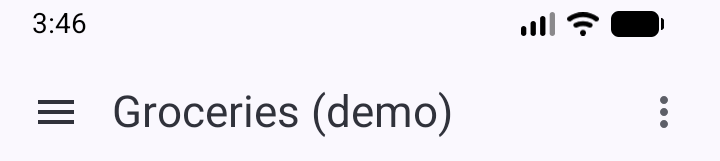
You can see the collections by tapping on the ☰ (“hamburger menu”) at the top left. Tap a collection to make it the current collection. The current collection name is shown at the top of the screen.
When you want to start using the app for real, you will want to create your own collection. Tap on the ⋮ (“three dots menu”) at the top right and choose “Edit collections”, then use the floating + button at the bottom right to add a new collection. You can also tap on a collection to edit it, and from there you can use the “Delete collection” button to remove it.
Products and stores
The “Edit products” and “Edit stores” menu options on the three dots menu at the top right allow you to add, edit and delete products and stores for the current collection. As with collections, you can add products or stores using the floating + button at the bottom right. You can tap on a product or store to edit it, and from there you can use the “Delete” button to remove it.
The current product and store are shown near the top of the app’s main screen:
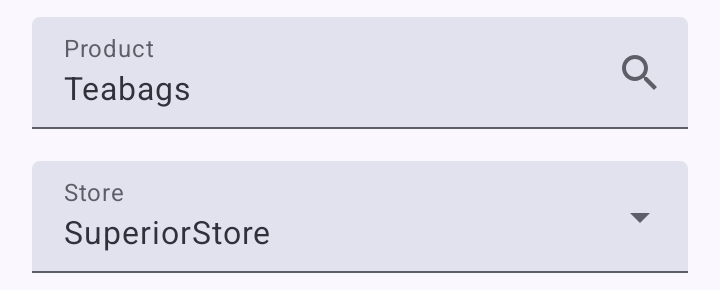
Tap the “Product” field on the main screen to change the current product. This will open the product selection screen, where you can scroll through the list of products or search by typing in any part of the product name. You can also add new products here using the floating + button at the bottom right of the product selection screen.
Tap the “Store” field on the main screen to change the current store. A menu will open allowing you to pick one. Choosing “None” will mean there is no current store, which hides the “Store price” panel. This might be useful because:
- It frees up space on the screen so you can see more of the “Price comparison” panel.
- It makes it harder to tap the controls on the “Store price” panel by accident.
You can also select a store by tapping on its row in the “Price comparison” panel.
Store price panel
The store price panel appears just below the “Store” field if there is a current store selected:

It shows information for the current product and store:
- “Shelf price” is the basic price for this product as shown on the store shelf: a certain amount of money for a certain quantity of the product. This does not take any inflation adjustments or loyalty discounts into consideration.
- “Unit price” is the unit price for the product, calculated from the shelf price. You can change the unit by tapping on this field and choosing another from the menu. This only affects the display on this panel. Again, this does not take inflation or loyalty discounts into consideration.
- “Confirmed” shows when the shelf price was last confirmed to be correct. This will appear in a different colour (typically some shade of red) if the price is considered old.
- The price judgement (“OK price” in this example) will appear if there are at least three stores with relatively up-to-date prices for this product. It represents a simplistic automated judgement of the price at the current store compared to others.
- “Notes” will be shown if you have entered a note on the edit price screen. This is not present in this example.
The panel also allows this information to be updated:
- “Edit” will open the edit price screen, where you can update the shelf price, edit a note about the price and optionally confirm that the new price is current.
- “Confirm” will immediately update the confirmed date to “now”. Use this when you are in the store and can see that the shelf price is still correct. You could achieve the same result using “Edit”, but this is quicker. After tapping “Confirm”, it will turn into an “Undo” button temporarily - tap this to undo an accidental confirmation.
Tap on the ⋮ (“three dots menu”) at the top right of this panel (not the screen) to open a menu which will let you:
- View the history of the prices for this product and store.
- Delete the price for this product and store. If you delete the price by accident, you can restore it from the view history screen.
Price comparison panel
The price comparison panel appears at the bottom of the app’s main screen:
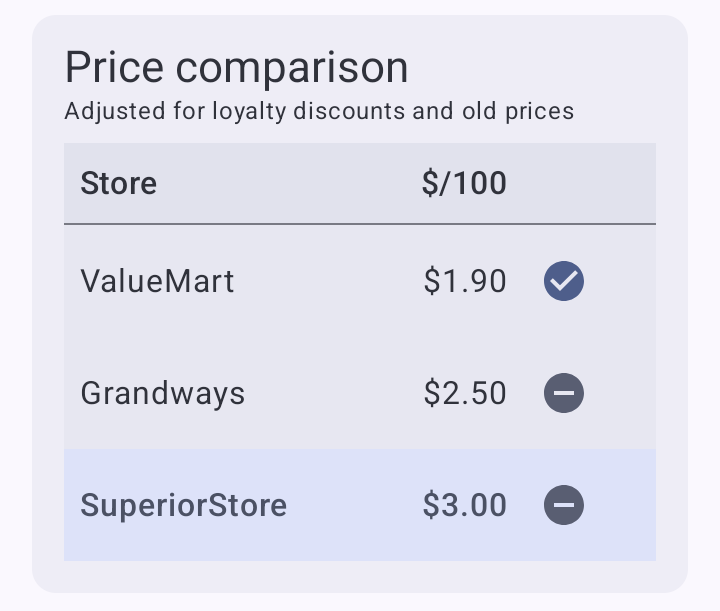
It shows the unit price for all the stores which have a price for the current product, sorted into ascending order so that the best price is at the top. These prices take loyalty discounts and inflation adjustments for old prices into account. This means that the unit price shown here may not match the unit price shown on the store price panel.
The row for the currently selected store (SuperiorStore in this example) is highlighted. Tapping a row will make that store the current store, showing the details for that price in the store price panel.
Icons may appear next to a unit price in this table:
- A tick in a circle indicates a good price.
- A horizontal line in a circle indicates an OK price.
- A cross in a circle indicates a bad price.
- An hourglass with the sand in the top half indicates a stale price (not confirmed for 30 days, by default).
- An hourglass with the sand in the bottom half indicates an ancient price (not confirmed for 180 days, by default).
Price classification
Stale prices and ancient prices both have an inflation adjustment applied to them to try to keep them useful, although ideally you will update or confirm the price. Ancient prices are ignored when making price judgments.
Here’s a table showing the ways a price’s age (how long since it was last updated/confirmed) affects the app’s behaviour:
| Fresh price (confirmed <=30 days ago) | Stale price (confirmed between 30 and 180 days ago) | Ancient price (confirmed >180 days ago) | |
|---|---|---|---|
| Hourglass icon in price comparison list | No | Yes (“top hourglass”) | Yes (“bottom hourglass”, warning colour) |
| Inflation adjustment applied | No | Yes | Yes |
| Taken into account for price good/OK/bad recommendations | Yes | Yes (after inflation adjustment) | No |
Design philosophy
Is “design philosophy” a bit pretentious? Sorry, I wasn’t sure what else to call it.
Entering all the data yourself obviously means more work than an app using a crowd-sourced database, website scraping or with the app owner curating a database of prices. However, it also means:
- You can trust the data, because you entered it.
- The data reflects the actual local prices and availability. If ValueMart’s website shows foozles cost $4/dozen but you live in a city and your local ValueMart is a ValueMart Express which charges a higher price, or doesn’t even stock foozles, the app won’t mislead you into making a trip to ValueMart to buy your foozles.
- The data reflects how you choose to think about products and your own tastes.
The last point is key. Suppose you drink coffee but aren’t brand-sensitive. You might create a product “Ground coffee” and record the price of the best value coffee (regardless of brand) at each store. In the app, you will see all these prices compared together so you can buy the cheapest. There’s no need to track each brand separately and categorise them all as “coffee” so you can compare across the different brands. If you’re not brand-sensitive but hate ValueMart’s own brand coffee, you can just remember that and ignore it when updating the price for “Ground coffee” at ValueMart. You can also write a note within the app if you want to jog your memory the next time you’re buying coffee at ValueMart.
On the other hand, suppose you’re brand-sensitive when it comes to cereals. You can create separate products for “Jones’ Wheaty Flakes” or “Smith’s Sugarcorn” and track them separately. When you decide you need to buy a new packet of Jones’ Wheaty Flakes, you can see where the cheapest place to buy it is and ignore Smith’s Sugarcorn completely.
Either way, there is at most one current price for each combination of store and product.
This is a very simplistic way of representing the price data, but in practice I think it is a good compromise between ease of use and tracking what needs to be tracked. A more advanced data model would allow a better representation of the real world, but it would also require extra effort to navigate and maintain while you’re standing in the supermarket aisle.
The app is not intended to allow you to gather an objective and detailed history of prices for everything you buy. Its purpose is to assist you by remembering prices and whether those prices are recent ones or not.
Settings
The Settings option on the triple dot “overflow” menu at the top right of the home screen brings up the Settings screen. These settings apply to all collections; each collection does not have separate settings.
Backup and restore
Unless you have some other means of backing up your phone as a whole and have tested it works with this app’s data, you are strongly advised to periodically use the Settings->Backup option to export your data to a file and copy the file off your phone so you don’t lose it if your phone is lost, stolen or damaged.
You can use Settings->Restore to restore a backup created via Settings->Backup. This will destroy all the data currently held within the app. The expectation is that if you are restoring a backup, something happened to your phone and you are setting things up fresh with a brand new installation of the app with no real data in yet.
The backup includes all collections, not just the collection you are currently working with. Similarly, restoring a backup removes all existing collections and replaces them with the collections from the backup.
The backup file is just a SQLite database. You can open it with various tools, including web-based SQLite viewers like SQLite Viewer Web App. If you have privacy concerns, make sure to use a tool you trust and which will not take a copy of your data.
The app is still new and I suggest you perform additional verification of the backups to be safe:
- Keep older copies of the backup file, not just the most recent, and verify that the files are getting larger over time as data accumulates.
- Open the file and see if you can spot recent changes. For example, if you recently added a new product, see if you can see it in the item table.
Although I have not tried to test it myself, I believe that on versions of Android with “Auto Backup for Apps”, this app’s data may be included in the cloud backup. I have not taken steps to prevent this, since I understand it is opt-in and may be a worthwhile security/privacy trade-off for some people. As this is completely untested, please be very careful before relying on this to keep a useful backup - I strongly suggest you follow the manual backup process described above as well.
Feedback
Please raise bug reports and suggestions for enhancements as issues at the app’s GitHub repository.
This app is open source and is freely available under the MIT license on GitHub.